 AIFeed

Incognide
Explore the unknown and build the future.

Download for Linux, macOS, and Windows
Incognide unifies chat, code, documents, web browsing, and media into a tileable workspace with intelligent context and composable automations.
Built for seamless workflows, Incognide eliminates distractions and context switching. A path-based organization keeps your work structured naturally, while auto-saving workspaces let you resume any project exactly where you left off. No more juggling desktops, drowning in browser tabs, or hunting for scattered files.
Highlights
- Write and run code, use terminals, build reusable workflows and tools that chain together natural language and templateable code through jinja execution templates.
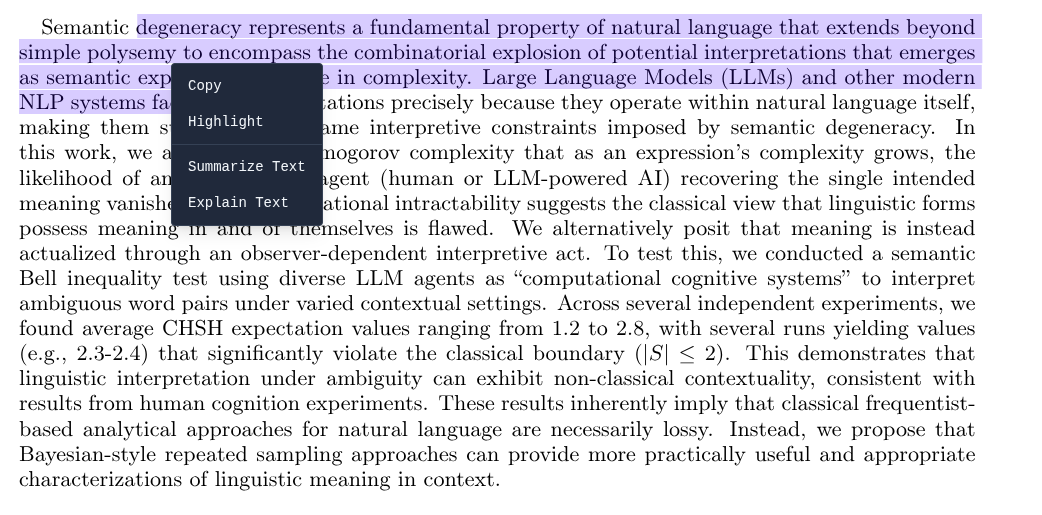
- Browse the web, read and annotate PDFs, view 3D STL models, analyze data and create dashboards, compile LaTeX.
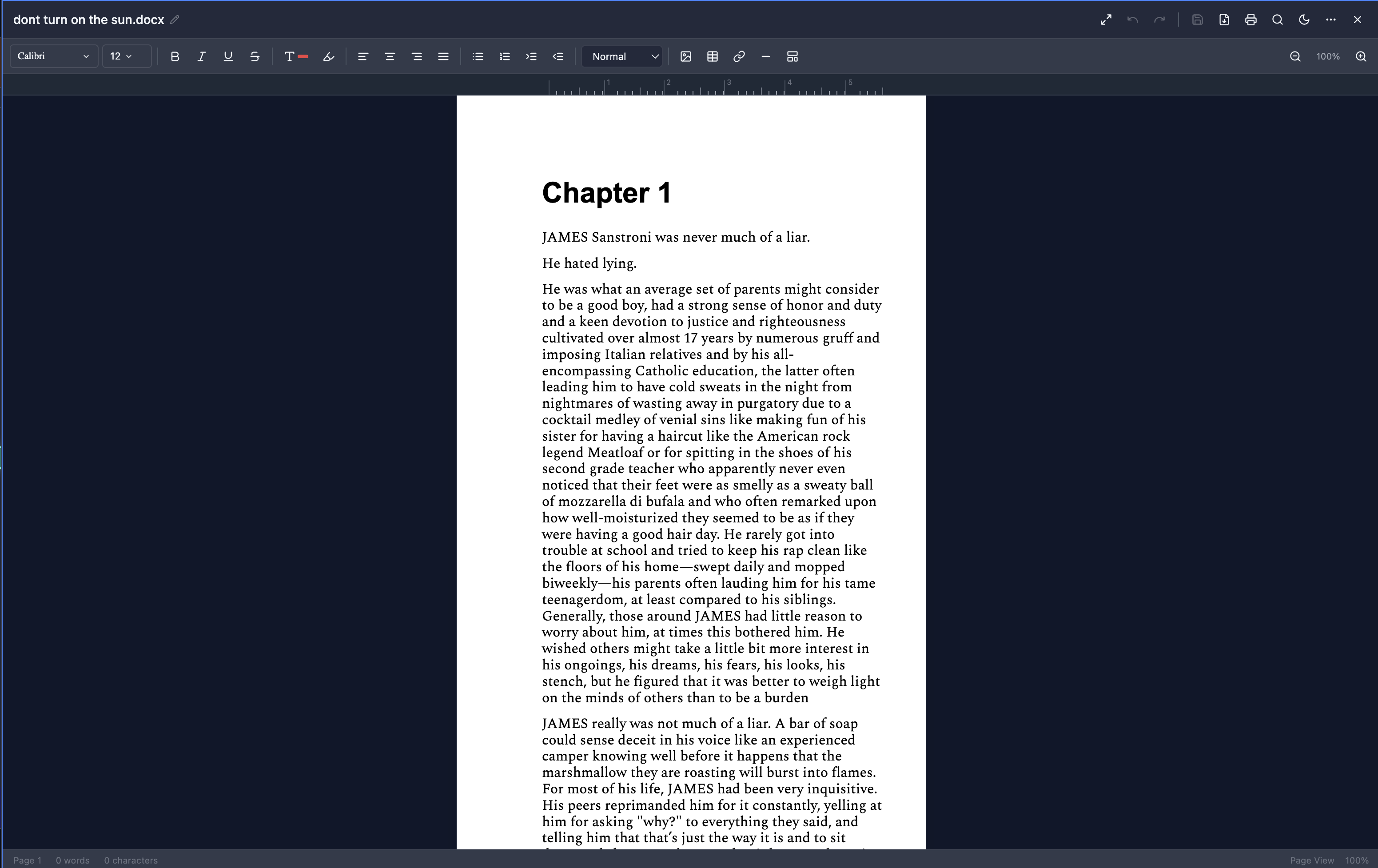
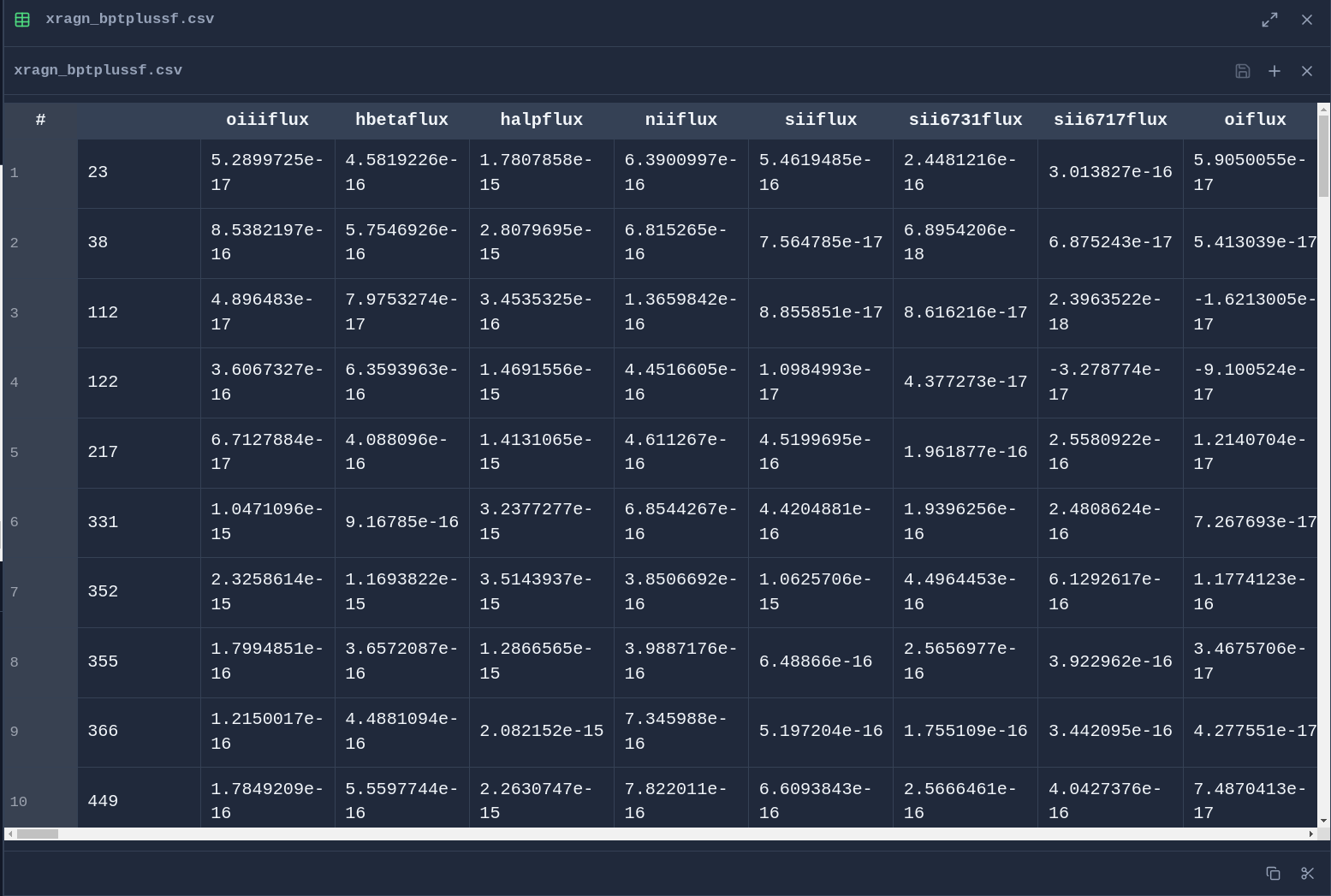
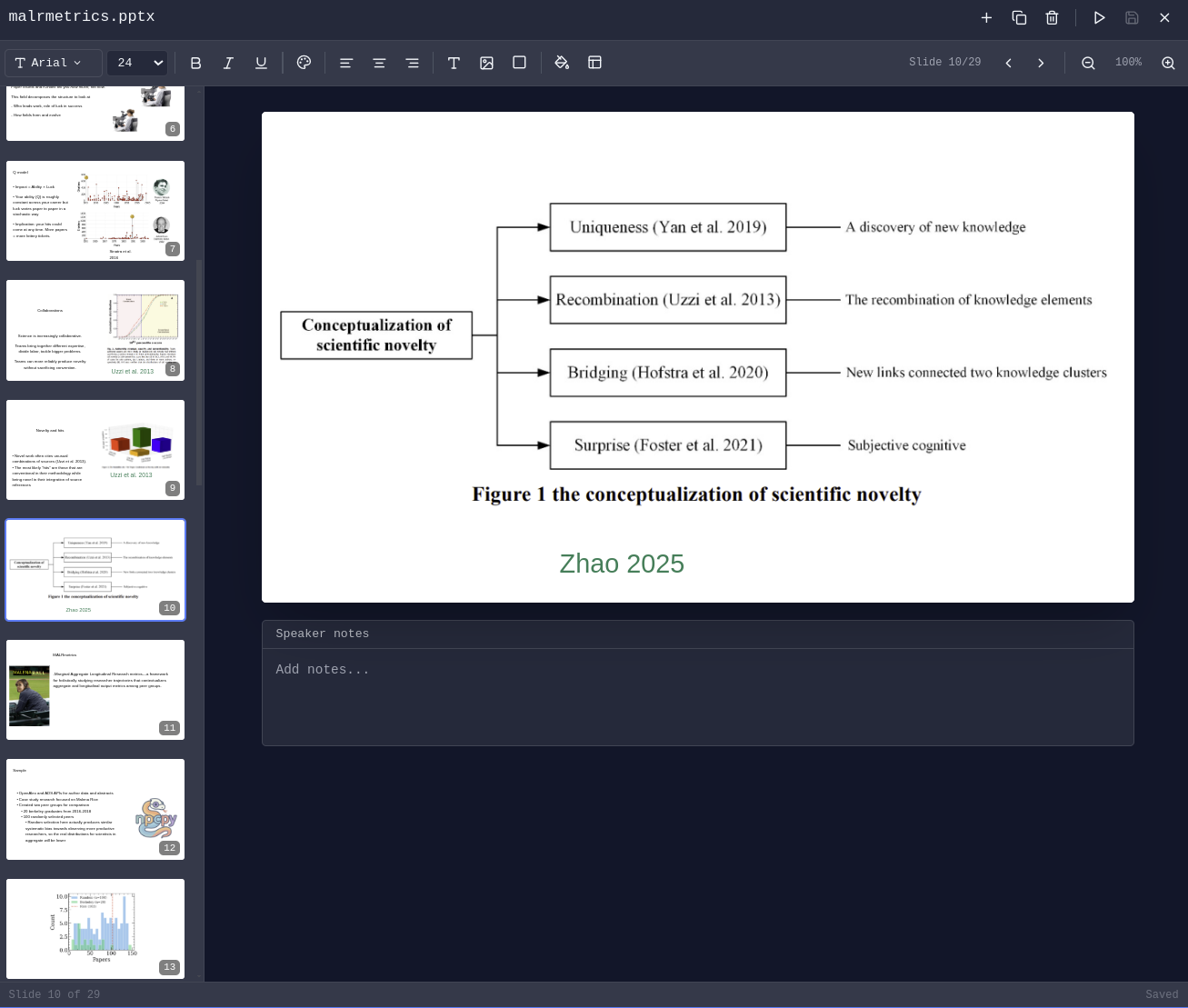
- Edit DOCX, XLSX, PPTX.
- Arrange chats, editors, PDFs, browsers, terminals, 3D viewers as your work evolves — each tab maintains independent state.
- Manage agents, have them run on scheduled jobs, edit team context, integrate with MCP Servers, approve or reject suggested memories, prune and evolve knowledge graphs.
- Schedule automated memory extraction, knowledge graph evolution, and context compression.
- Fine-tune text models using curated data from your conversations and memories.
- Built-in Pomodoro timer with programmable schedules and break enforcement.
Setup
1. Install
Download the installer for your platform from enpisi.com/incognide, run it, and launch Incognide. Linux, macOS, and Windows are supported.
2. First launch — setup wizard
On first launch the wizard walks you through five steps:
- Welcome — intro screen.
- Preferences — theme (dark/light) and the data directory for teams, models, and configs (default ~/.incognide).
- Defaults — default web search engine, default terminal shell (auto-detected per platform: system/zsh/bash on mac/linux, powershell on Windows), and activity tracking opt-in (local only, used for next-action predictions).
- Usage path — pick one of: No AI — workspace only (files, code, browsers, terminals, docs, maps). No model calls. Cloud AI — OpenAI / Anthropic / Gemini / etc. via API keys. Local AI — Ollama / LM Studio / llama.cpp / oMLX running on your machine.
- No AI — workspace only (files, code, browsers, terminals, docs, maps). No model calls.
- Cloud AI — OpenAI / Anthropic / Gemini / etc. via API keys.
- Local AI — Ollama / LM Studio / llama.cpp / oMLX running on your machine.
- Cloud keys (cloud-ai path) or Local models (local-ai path). See step 3 below for details.
The wizard writes preferences to localStorage (theme, fonts, shortcuts, UI defaults) and settings to ~/.incogniderc .
3. Connect a model provider
Local providers
The setup wizard (Local Models step) and the in-app Model Manager both probe these endpoints and binary locations:
| Provider | Server port | Binary / app checks |
|---|---|---|
| Ollama | 11434 | ollama in PATH; /Applications/Ollama.app on macOS |
| LM Studio | 1234 | lms in PATH; /Applications/LM Studio.app on macOS |
| llama.cpp | 8080 | llama-server , llama-cli , or koboldcpp in PATH |
| oMLX | 8000 | omlx in PATH; /Applications/oMLX.app (macOS only) |
Each tile shows one of three states: Running (server responds), Installed (not running) (binary or app found but port is dead), or Not found. The Model Manager has Start/Stop buttons when the binary is installed:
- Ollama: open -a Ollama (macOS) or ollama serve (Linux). Stop via pkill -f 'ollama serve' (or kill from the Windows system tray).
- LM Studio: lms server start / lms server stop if the lms CLI is present; otherwise the app launches and you start the server from the Developer tab.
- llama.cpp: requires a model path to start, so Incognide prints the exact command (llama-server -m <model.gguf> --port 8080) for you to run in a terminal. Stop via pkill -f llama-server.
- oMLX: open -a oMLX launches the menu-bar app; stop/start the server from its menu-bar icon.
GGUF / GGML model files can be loaded directly without a server, but only if llama.cpp or koboldcpp is installed — the Model Manager's GGUF tab depends on that engine and shows "Not found" otherwise.
Cloud providers
Add API keys on the Cloud keys step of the wizard, or later in Settings → Global Settings or Team Management → API keys. Keys are stored in ~/.incogniderc as export <PROVIDER>_API_KEY=....
OrcaRouter
Try out almost 200 different models from 15 different providers with OrcaRouter using our referral link!
OrcaRouter is a first-class provider, so it appears in the provider list and the model selector like any other. It offers two independent ways to connect, both shown in the OrcaRouter card in Model Manager:
| Choice | How it works | Credential |
|---|---|---|
| OrcaRouter - API | Paste an existing sk-orca-… key, or set ORCAROUTER_API_KEY in ~/.incogniderc . | A key you already own. No network call is made to validate it; the first request settles it. |
| OrcaRouter - Auth | Click Connect with OrcaRouter — your browser opens the consent screen and the key comes back automatically (OAuth 2.0 + PKCE, S256, loopback redirect, no client secret). | A durable key issued to your own account. Reused until you revoke it; there is no refresh grant. |
Both paths produce the same durable API key, stored encrypted with Electron safeStorage in $INCOGNIDE_HOME/orcarouter_credentials (the same mechanism used for saved browser passwords). Revoke your access at any time from the OrcaRouter console.
Endpoints. Inference and model discovery use https://api.orcarouter.ai/v1 with the OpenAI wire format. Authentication uses a different origin, https://www.orcarouter.ai, at /auth and /api/v1/auth/keys. Self-hosted deployments can set ORCA_BASE_URL (shared origin, /v1 is appended for inference) or the explicit ORCA_AUTH_BASE_URL / ORCA_API_BASE_URL overrides, which take precedence. Remote origins must be HTTPS; plain HTTP is accepted only for loopback.
API Route
Get your own key from API Route and save it as API_ROUTE_API_KEY in Global Settings or ~/.incogniderc. Restart Incognide after changing environment variables. Model Manager detects API Route and uses https://global.api-route.com/v1 for its OpenAI-compatible API. Add the detected provider, then expand its card to load the models available to your key; gpt-6.1-sol is the default model. API usage is billed separately by API Route.
cheapaimodel
Get your own key from cheapaimodel and save it as CHEAPAIMODEL_API_KEY in Global Settings or ~/.incogniderc. Restart Incognide after changing environment variables. Model Manager detects cheapaimodel and uses https://api.cheapaimodel.ai/v1 for its OpenAI-compatible API. Add the detected provider, then expand its card to load the models available to your key; deepseek-v4-1-flash is the default model. API usage is billed separately by cheapaimodel.
Standard Compute
Get your own key from Standard Compute and save it as STANDARDCOMPUTE_API_KEY in Global Settings or ~/.incogniderc. Restart Incognide after changing environment variables. Model Manager detects Standard Compute and uses https://api.stdcmpt.com/v1 for its OpenAI-compatible API. Add the detected provider, then expand its card to load the models available to your key. The default model StandardCompute sends each request to the cheapest enabled model that can handle it, with automatic fallback; you can also pin a specific model id from the list.
Models. The model dropdown is populated from GET /v1/models with your own key, so it reflects what your workspace can actually call. Each AI input filters that catalog by capability: text chat keeps only models advertising a text endpoint, attaching an image narrows the list to models that declare image input, and embeddings, image generation, video and rerank use their own dedicated filters. A model that does not declare a required capability is never offered, and a selection that stops being compatible is cleared rather than kept. If discovery fails, a small verified fallback list is shown and labelled as degraded.
Runcrate
Get your own key from the Runcrate dashboard and save it as RUNCRATE_API_KEY in Global Settings or ~/.incogniderc. Restart Incognide after changing environment variables. Model Manager detects Runcrate and uses https://api.runcrate.ai/v1 for its OpenAI-compatible API to open-weight models. Add the detected provider, then expand its card to load the models available to your key; deepseek-ai/DeepSeek-V4.1-Flash is the default model. API usage is billed separately by Runcrate (docs).
Synap
Get your own key from Synap and save it as SYNAP_API_KEY in Global Settings or ~/.incogniderc. Restart Incognide after changing environment variables. Model Manager detects Synap and uses https://synap402.com/v1 for its OpenAI-compatible API; the default model synap-v1 auto-routes each request to whichever model Synap serves can handle it, billed at that model's price. Synap is operated by Linkrra and is independent of Incognide; your prompts and key go directly to Synap under its own terms, the same as any other cloud provider listed here. API usage is billed separately by Synap.
MartLLM
Get your own key from MartLLM and save it as UBERLLM_API_KEY in Global Settings or ~/.incogniderc. Restart Incognide after changing environment variables. Model Manager detects MartLLM and uses https://api.martllm.com/v1 for its OpenAI-compatible API to models from many vendors (DeepSeek, Anthropic, OpenAI, Qwen and others). Add the detected provider, then expand its card to load the models available to your key; deepseek/deepseek-v4-flash is the default model. API usage is billed separately by MartLLM (models and prices).
4. Data directory
Incognide stores teams, NPCs, jinxes, memories, knowledge graphs, and model configs under the data directory you picked in step 2 (default ~/.incognide). Changing it in Settings → Global Settings → Default Directory updates ~/.incogniderc's INCOGNIDE_DATA_DIRECTORY.
5. Troubleshooting
- Click on the window manager icon in the bottom left (in between the dark/light mode theme toggle and the incognide icon that launches a new window) and you will be able to see the window manager. From there, you can access the frontend and backend logs . Reviewing these may help you diagnose your issue, and when submitting issues to this repo, including directly from these logs will be most helpful to isolate and provide fixes.
Table of Contents
- Office & Productivity
- Research & Knowledge Management
- Model Training & Fine-tuning
- AI Chat & Agents
- Focus & Productivity
- Settings & Customization
- Keyboard Shortcuts
- Development Setup
Office & Productivity
Document Editing
Create and edit Office documents directly in Incognide without needing external applications or cloud services.
Word Documents (DOCX) - Full rich text editing with formatting, tables, and images:
Spreadsheets (XLSX & CSV) - Edit data with formula support and cell formatting:
Presentations (PPTX) - View and edit PowerPoint presentations:
PDF Management
Read, annotate, and analyze PDF documents with AI assistance.
Highlight & Annotate - Mark up PDFs with highlights that persist across sessions:
File Management
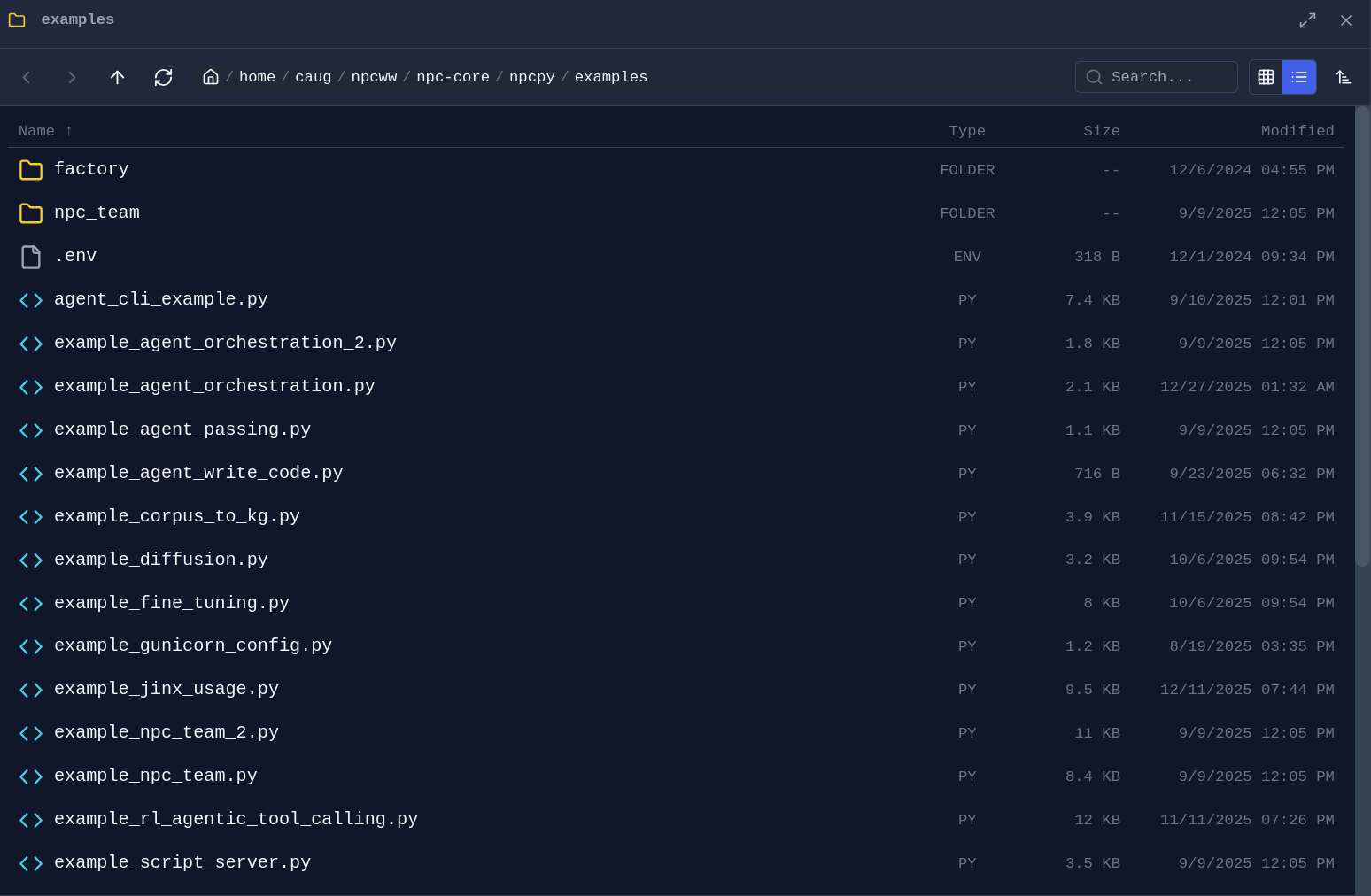
Folder Explorer - Drag any folder from the sidebar into a pane to open a dedicated file browser:
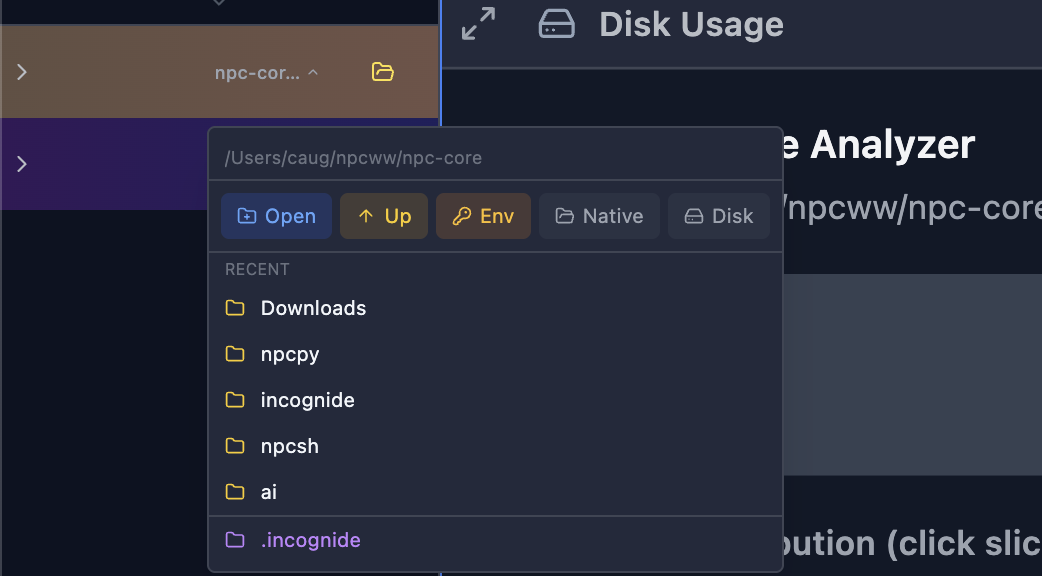
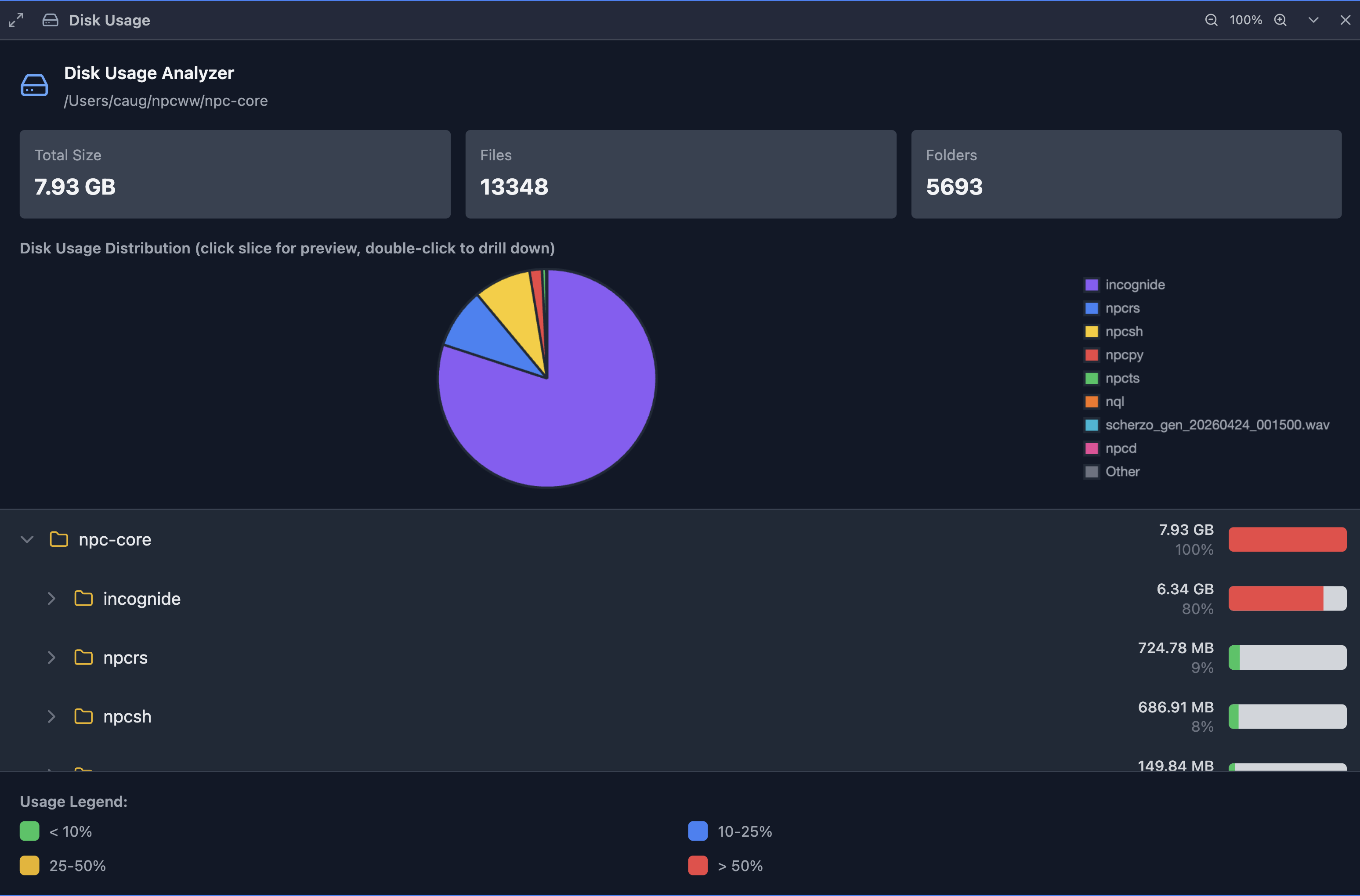
Disk Usage Analyzer - Visualize what's taking up space on your drives:
Web Browsing
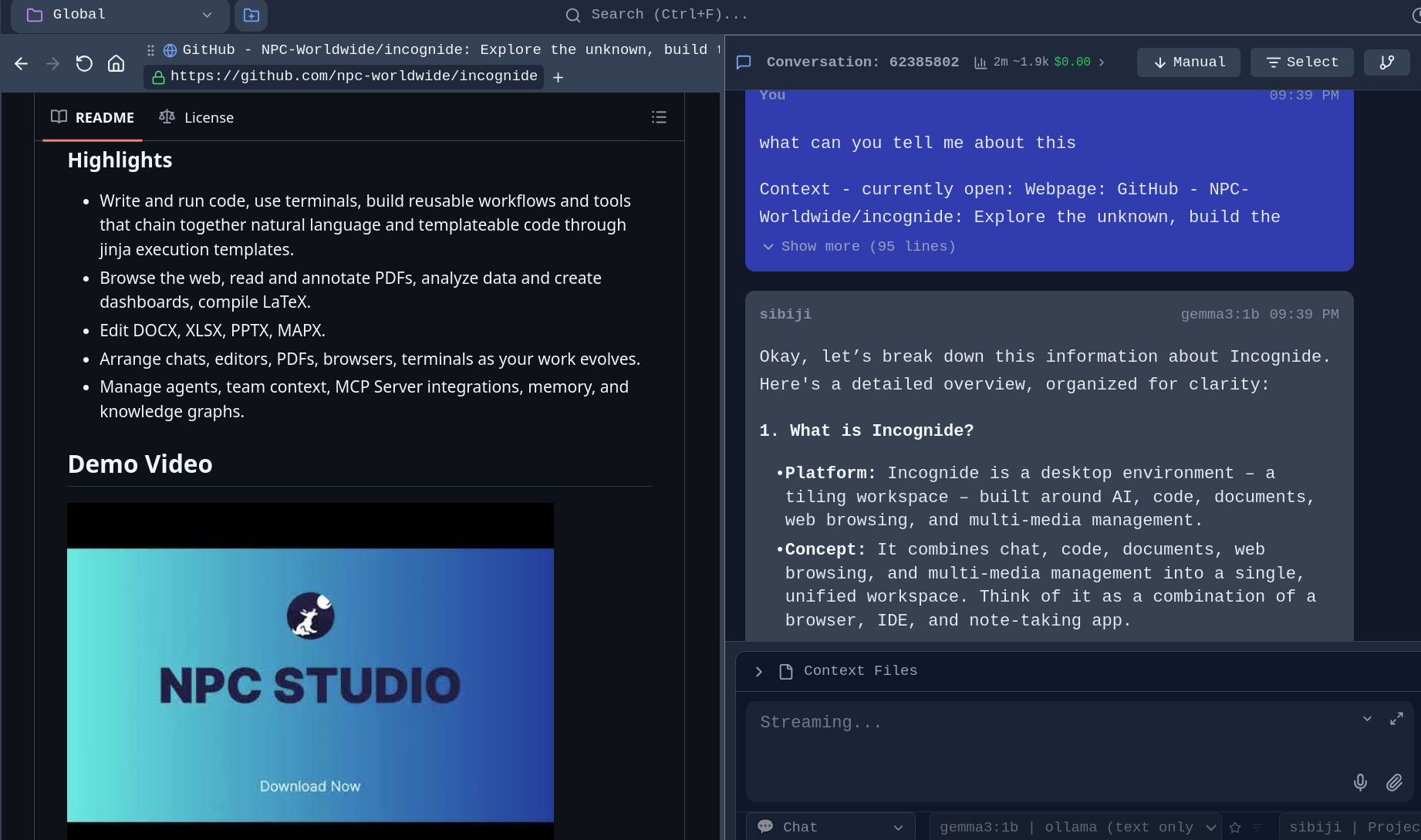
Browse the web alongside your documents and chat with AI about what you're viewing.
Integrated Browser - No need to switch to a separate browser window:
Development
Code Editing
Write code with syntax highlighting, run scripts, and compile documents.
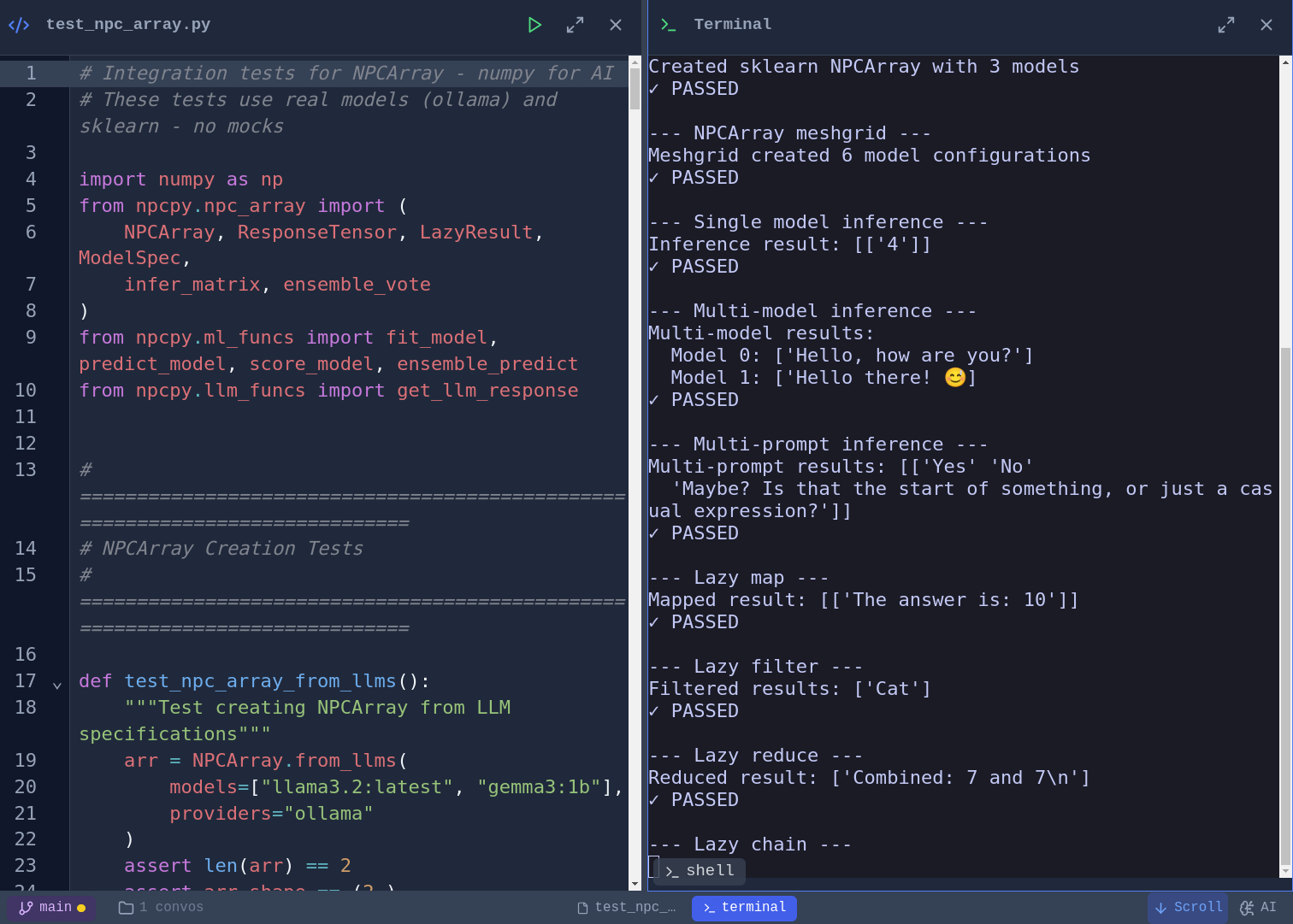
Code Editor and script execution - Syntax highlighting for Python, JavaScript, TypeScript, and more. Vim, Emacs, and Nano keybinding modes with a toggleable cheat sheet. Run Python scripts directly and see output inline:
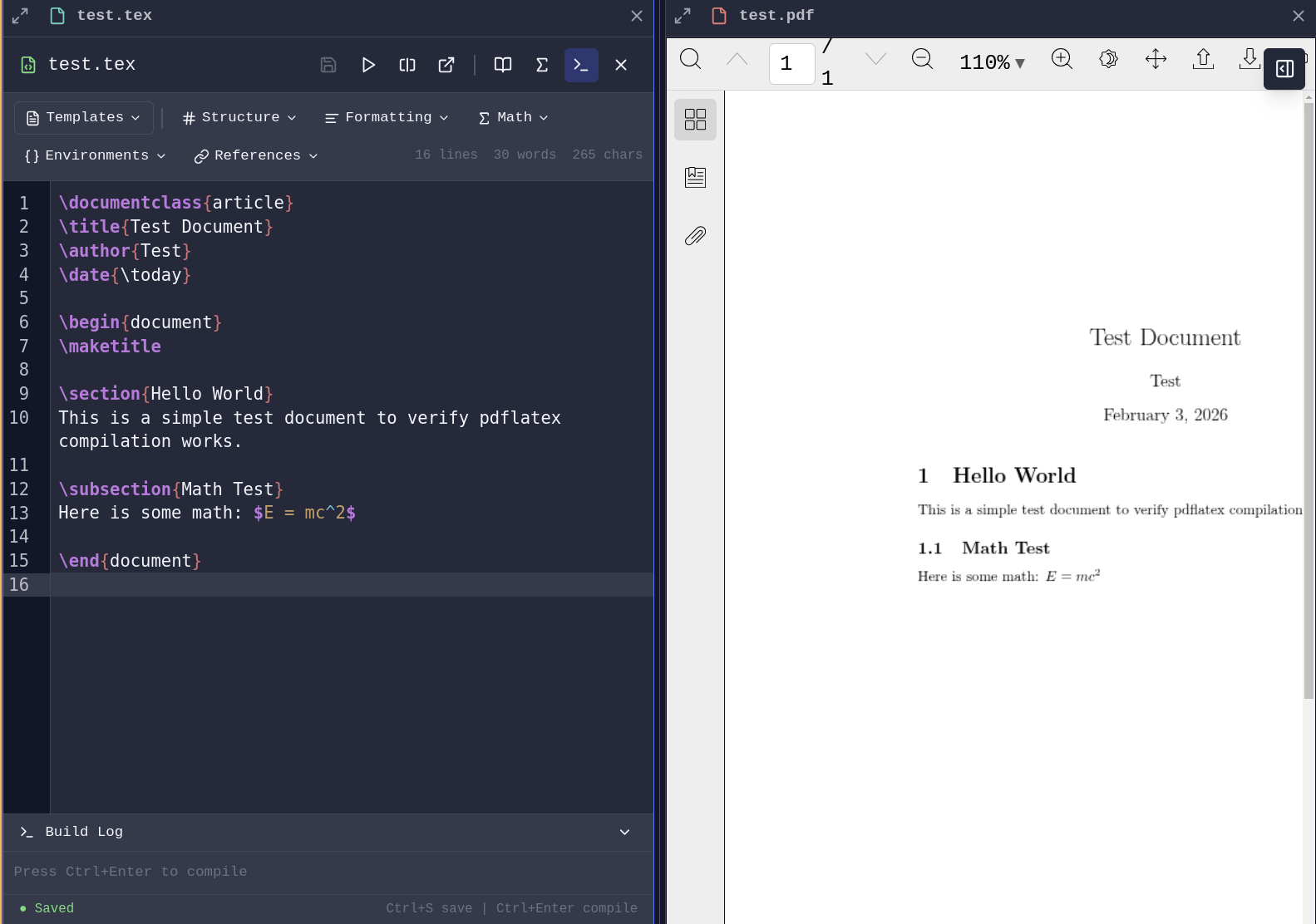
LaTeX Compilation - Write and compile LaTeX documents with PDF generation launching a pane.
Git Integration
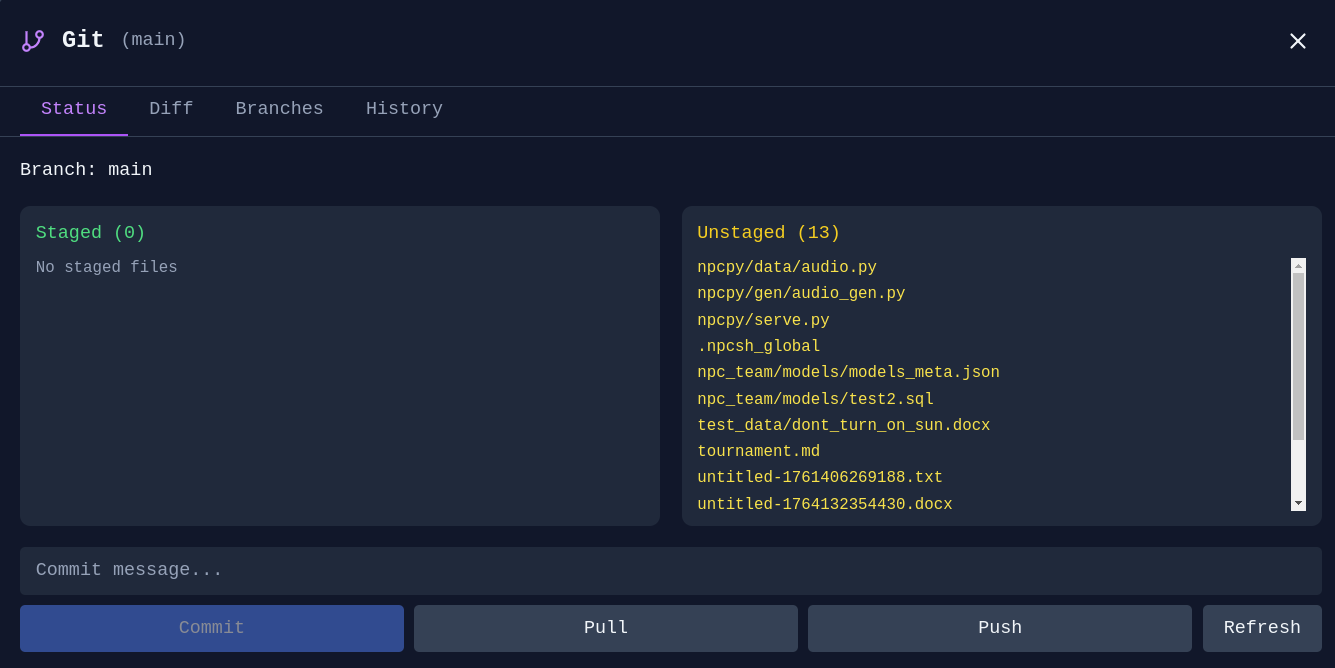
Git Manager - Stage, commit, and manage branches without leaving Incognide:
STL Viewer
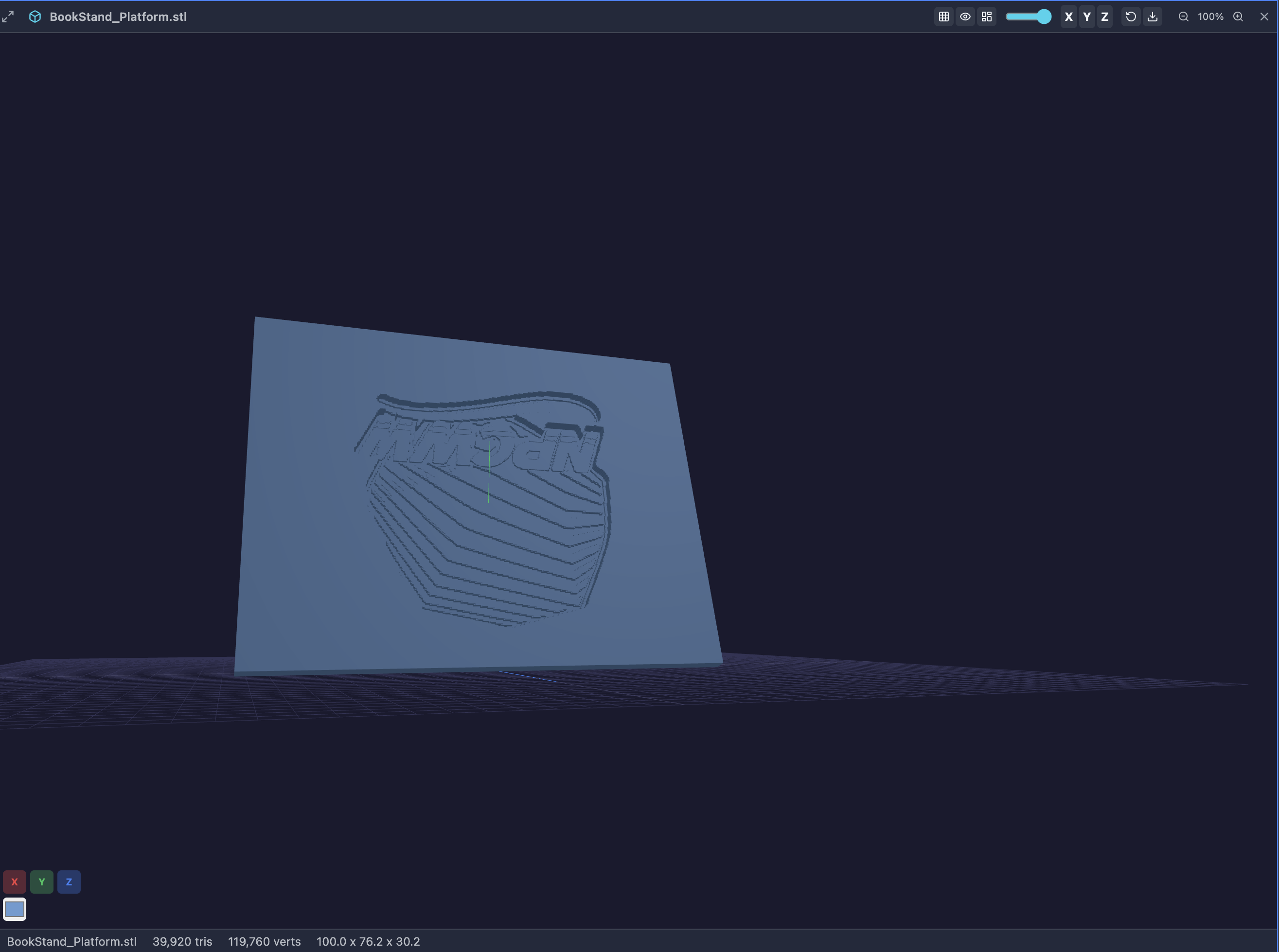
View 3D models directly in Incognide.
- Orbit, pan, and zoom with mouse controls
- Wireframe, axes, and grid toggles in the pane header
- Quick axis views (X, Y, Z) for front/side/top perspectives
- Adjustable mesh color and opacity
- Screenshot export of the current viewport
- Model info: triangle count, vertex count, and bounding box dimensions
Cloud Sync & Account
Sign In - Create an account to sync your conversations and settings.
End-to-End Encryption - All synced data is encrypted with your passphrase before leaving your device. Your passphrase never leaves your machine.
macOS Permissions
On macOS, manage permissions for camera, microphone, and screen capture from Settings. Required for voice input and screenshot features.
Development Setup
Incognide is an Electron + React frontend with a Python Flask backend powered by npcpy. The UI uses npcts, a React component library.
Prerequisites
- npcpy - Core Python library
- npcts - React component library (installed via npm)
- Node.js 16+ and npm
- Ollama (optional, for local models)
Setup
Option 1: Manual setup
        git clone https://github.com/npc-worldwide/incognide.git
cd incognide
npm install
Option 2: Via npcsh (installs to ~/.incognide)
npcsh> /incognidev
Running
        python incognide_serve.py   # Backend
npm run dev                   # Frontend (Vite)
npm start                     # Electron
Community
- Discord: Join us
- Issues & Bugs: GitHub Issues
- Discussions: GitHub Discussions
- NPC Ecosystem: npcpy | npcsh | npcts
License
Incognide is licensed under the MIT License. See the LICENSE file for details.