 AIFeed
Why did Android change the name of its Smart Lock feature?
Back in 2023, one of Android's most niche, but also most helpful, features saw a seemingly random name change.
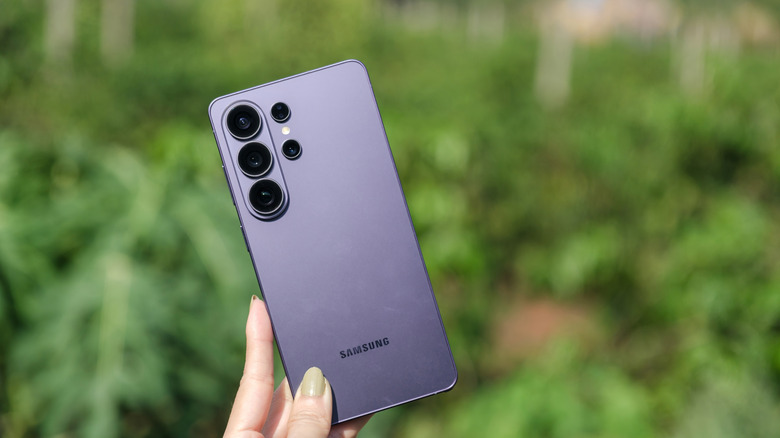
It's a busy time to be an Android user, with the major One UI 9 update rolling out across swathes of devices. However, that's no reason to overlook some of Android's more niche features. Among them is the Extend Unlock setting, formerly known as Smart Lock. While some settings protect your Android phone from theft by automatically locking it, Extend Unlock does the opposite: it keeps your phone unlocked under selected conditions.
The Smart Lock feature launched way back in late 2015, allowing users to keep their Android phone unlocked while it's being held, along with other options for keeping it unlocked through Trusted places and Trusted devices. Back in 2023, though, this setting was relabeled as Extend Unlock in an attempt to better illuminate its true purpose. When you take a look at how Extend Unlock works, the reason for the name change becomes apparent.
How Extend Unlock works
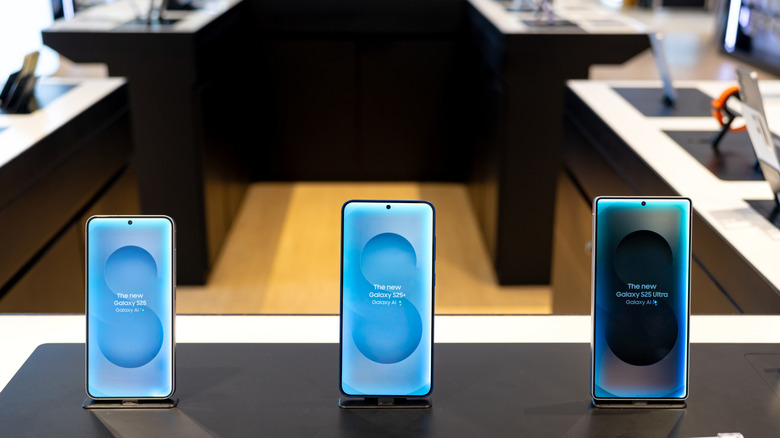
Fundamentally, the purpose of Extend Unlock is to keep your device unlocked under certain circumstances after you've unlocked it once, meaning you don't have to constantly re-enter your PIN. This feature comes in three options: On-body detection (keeping your phone unlocked while it's on your person), Trusted places (your phone will stay unlocked in the locations you add to this section) and Trusted devices (which will keep your phone unlocked when connected to a trusted device via Bluetooth). Just be careful with which devices and places you select as trusted if you want to make sure your Android phone is secure, since your phone can remain unlocked in these locations even when someone else has it.
To get Extend Unlock up and running, simply head to Settings > Security and privacy > More security and privacy > Extend Unlock and customize your experience from there. Just keep in mind this path may be different depending on your device. From here, you can select devices that have already been paired with your phone via Bluetooth and add locations where you want your phone to remain unlocked.
Why Smart Lock became Extend Unlock
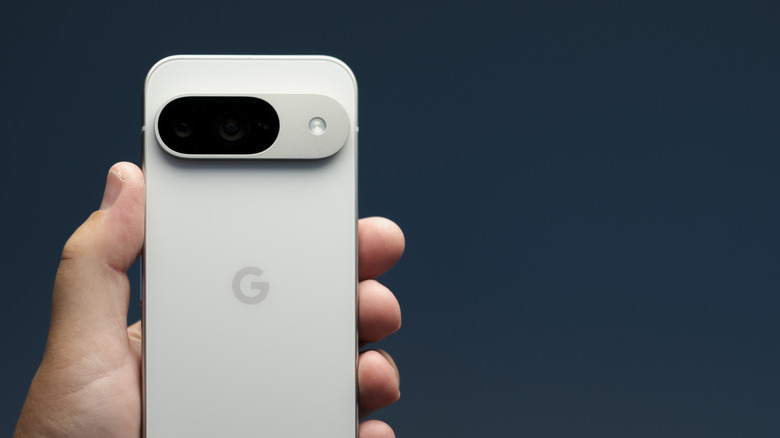
With all of this in mind, it's easy to see why Smart Lock became Extend Unlock. While "Smart Lock" references the intelligence of the device in knowing when to stay unlocked, "Extend Unlock" more succinctly describes how the feature extends the time your phone can stay unlocked under selected conditions. Either name fits, but Extend Unlock not only works but separates the toggle from other "smart" features (which is especially helpful in the current AI age).
The Extend Unlock name change was also reported alongside the development of Watch Unlock. Over on the Pixel side of Android, you can head to your Watch app and go to Watch preferences > Security > Watch Unlock and connect a compatible paired Pixel Watch in a similar way to Extend Unlock, allowing you to unlock your phone when your watch is unlocked, on your wrist and nearby. The similar names distinguish their roles: Watch Unlock unlocks your phone, while Extend Unlock keeps it unlocked.