 AIFeed
5 ways to make sure your console isn't holding back your GTA 6 performance
GTA 6 already pushes every PS5 and Xbox to its limit, but is yours falling short of it?
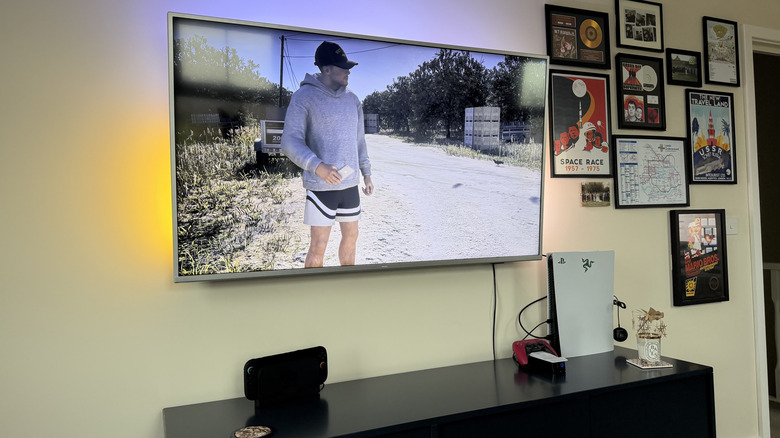
Within days of GTA 6's November 19 debut, Xbox owners had found a way to break its 30 fps cap. The trick, which was first reported on November 22, involves flipping a Series X's output between 60Hz and 120Hz, then hopping in and out of the game using Quick Resume. It works... sort of. When Digital Foundry tested the trick, it found the uncapped Series X averaged about 36 fps over an hour of play. The game's cars and animations also moved noticeably faster than they're meant to (some at around double speed).
It's fundamentally the processor that's holding GTA 6 at 30 fps on current-gen consoles (PS5 Pro included). The fact that a Series X with the limiter switched off is only able to find six extra frames per second illustrates how little is left to play with, so tinkering with settings isn't going to do very much. What you can do, however, is check whether your console is making the most of its available hardware.
A system that's out of date, stuck in a stale session, choked with dust or reading the game off the wrong drive could easily fall short. Here's how to find out if yours is falling victim to any of these problems.
1. Know what frame rate you should be getting
I've played around 60 hours of GTA 6 in the last week on an original-model PS5 I bought in 2021, and haven't seen too much dipping below 30 fps outside of full-on rampages. There are some drops, though, which aligns with others' findings that it regularly falls slightly under 30 fps during ordinary city drives, and dropped to 23 fps during a grenade launcher test with multiple explosions. The PS5 Pro fares much better, with stress tests finding that it maintains 30 fps for the most part, only dropping to around 24 fps when the player wrecks as many cars as possible all at once.
The Series X, meanwhile, generally holds its 30 fps target but can slip during busy scenes and explosions. The Series S, which renders at 720p internally, struggles quite a bit. It hovers between 25 and 30 fps for most of the game and drops to as low as 20 in busy areas and when vehicles start blowing up, with one explosive scene briefly tanking it to 18 or 19 fps during Kotaku's testing.
Since consoles don't have built-in frame rate counters, the simplest way to monitor fps is to watch for stuttering. If the action gets choppy during firefights, police chases, explosions and pile-ups, your frame rate is dropping, which is somewhat normal for current-gen console hardware. You shouldn't be losing frames during cutscenes or when walking or driving around normally, even on a Series S.
If you are, that's a sign something else is amiss with your console. As for native 40 or 60 fps modes, Rockstar's technology production director Marc Chambers has said that even the PS5 Pro's processor isn't powerful enough, settling a major question about GTA 6's controversial FPS decision.
2. Make sure your game is up to date
Rockstar released GTA 6's first post-launch update on November 23. The patch notes describe fixes for several issues that caused the game to crash, along with bugs that could stall playthroughs, from broken autosaves to story phone calls that wouldn't come through. Nowhere in the patch notes is frame rate or performance mentioned, though. The rumor mill started spinning up shortly after, claiming that Rockstar would push a stuttering fix on November 25, but nothing came of it.
To check whether your game is up to date on PS5, highlight GTA 6 on the main menu, press the Options button on your controller and select Check for Update. Xbox players should go to My games & apps, choose Manage and then check under Updates to see titles that have newer versions available. Storage might be an issue, given the base game's absolutely massive 212GB size. Sony has warned that installing data can require roughly twice as much free space as the install size, so a console that's filled to the brim might refuse to install the patch.
Players were still posting about error CE-108255-1 and others as recently as November 25. Sony describes it, rather vaguely, as an error with a game or application. If it keeps happening after updating, Sony's crash troubleshooting runs through installing the latest system software, starting a new save and, as a last resort, deleting and reinstalling the game.
3. Quit the game instead of resuming it

Quick Resume on the Xbox Series X and S saves the state of a game when you switch to another one, then reloads that state when you come back. It's the feature that enables the frame rate glitch mentioned earlier. It works by setting the console to 60Hz, starting GTA 6, switching to 120Hz on the loading screen, launching a different game and then jumping back in through Quick Resume. This relaunches the game with its cap removed, allowing it to run faster than it's meant to — though it can lead to crashes and bugs.
In testing by Digital Foundry, the uncapped Series X only reached 60 fps when flying a plane with nothing but sky in view. It managed around 40 fps on highways with light traffic, but barely beat 30 in heavier scenes, such as busy streets. It concluded that 60 fps is simply out of reach on current hardware and that although a 40 fps mode with VRR could make sense on Series X, it wouldn't be a clear improvement over the current 30 fps cap.
To get a clean start on Xbox, press the Xbox button, highlight GTA 6, press the Menu button and then select Quit. You can also manually choose which games use Quick Resume through Manage game and add-ons > Quick Resume settings on a game's tile. Microsoft added that feature back in April because Quick Resume doesn't always behave as intended in certain titles (particularly after a game has been inactive for a while).
The PS5, meanwhile, keeps games suspended in rest mode. Thus, closing GTA 6 by highlighting its icon on the main menu, pressing Options and choosing Close Game, or turning the console off completely, achieves the same result. Be sure to save your game regularly since you won't have sleep mode as a fallback.
4. Clean out the dust and give it breathing room
Sony's PS5 safety guide recommends keeping your console roughly 4 inches away from walls, out of closed cabinets or other cramped spaces, and off long-pile carpets. It should also be free of dust on its vents. Microsoft recommends similar for the Xbox: a well-ventilated, relatively cool spot away from heat sources, with nothing sitting on, under or right next to the console. Since both went on sale in late 2020, plenty of consoles have had six years to suck up dust.
While neither Sony nor Microsoft says that a hot console will lead to slower gameplay, heat stress wears components down more quickly. Also, if your PS5 gets too hot, you'll be met with an on-screen warning, at which point Sony recommends switching it off and letting it cool down to prevent damage. On Xbox, meanwhile, poor ventilation and/or overheating is one of two causes Microsoft gives for the console switching itself off without warning. So while a hot console won't necessarily cut the frame rate, it could crash your game or force your console to shut down.
There's also been speculation that overheating could be behind some of the PS5 crashes we've seen since GTA 6's launch. That's possibly because of degradation of the liquid metal that sits between the processor and its cooler. A clean console isn't a workaround for hardware limitations and faults, but it does remove heat as a potential suspect.
Sony says that before cleaning your PS5, you should unplug it and wipe the outside with a soft, dry cloth. Its side covers come off, allowing you to clean the dust catchers more easily.
5. Play from the console's internal SSD
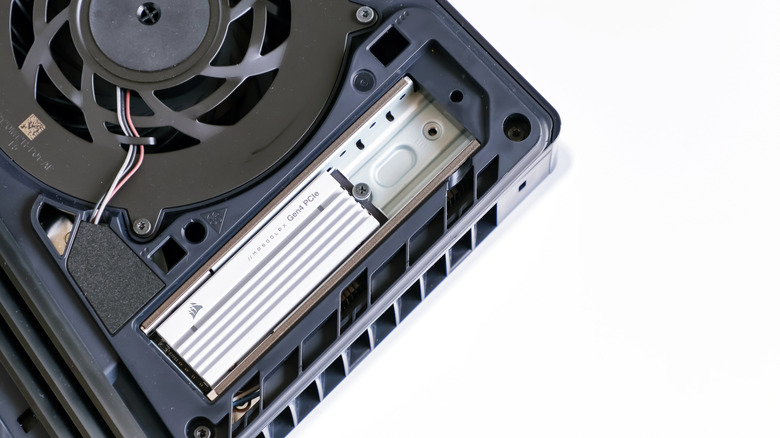
GTA 6 needs up to 212GB of free space on both consoles, which is close to a third of the roughly 667GB that's usable on an 825GB PS5. That might push you toward installing the game on a secondary M.2 SSD added to the console's expansion slot. While the PS5 is compatible with a wide range of PCIe Gen4 drives, Sony recommends a sequential read speed of 5,500 MB/s or faster and requires a heatsink or similar cooling. But even with a compatible drive faster than that, games won't necessarily perform the same as they would on the internal SSD.
As you'd expect from such a dense title, the game is constantly pulling in data as you move around Leonida. Digital Foundry's Series S testing found frame rate drops in situations that put a heavy load on the console's AI or streaming, so the game leans on its storage more than others do.
While we haven't seen any examples of GTA 6 behaving problematically when installed on an M.2 drive, if you're doing so and experience stutter when you shouldn't, moving the game back to internal storage is worth a try. On your PS5, go to Settings > Storage > M.2 SSD Storage > Move Games and Apps to move as needed. On an Xbox, Series X and S games can only run from the internal SSD or Microsoft's Storage Expansion Card, which Microsoft says performs identically to the internal drive.